max-ultra-mcp-community-skills
Windows: title bar, edges, collapsed bar, dialogs
The standard window of a tool made with this skill. Implementation: tool-window template.
All sizes are logical pixels at 100 % interface size; multiply them with px() (interface size).
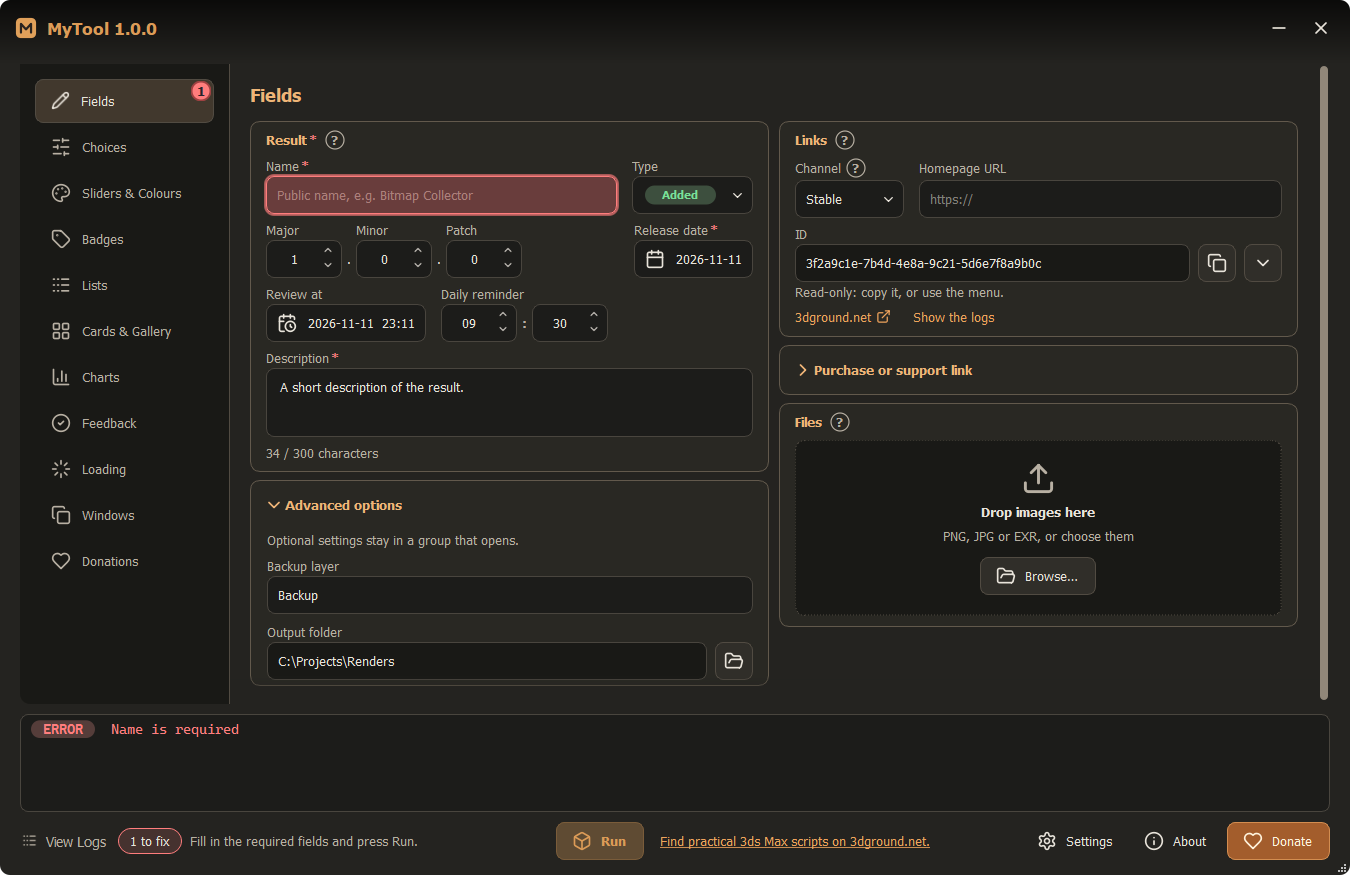
Main window
- Narrow by default. One column about as wide as the Command Panel (300-360 px at 100 %), wider only when the content needs it; see the house rule in the Qt design system.
- Frameless, own title bar.
Qt.Window | Qt.FramelessWindowHint,WA_StyledBackground(background from the style sheet), parented toqtmax.GetQMaxMainWindow()so it stays with Max and above it without always-on-top flags. - Title bar row (margins 8 / 4 / 4 / 2, spacing 4): brand icon 18 px, 3 px gap,
Name version(accent colour, bold, 10 pt, object nametoolWindowTitle), optional status pills right after the name, stretch, then two round window buttons (controls.WindowButton, 28 px circles, transparent at rest, a soft circle on hover): Lucideminus(collapse to the bar) andx(close). The close button turns red on hover (#9f3636, the same in every theme) with a white cross. Tooltips: “Collapse to a small bar (click its name to open again)”, “Close Name”. - Header shade. A gradient from black at alpha 0.7 (
ToolWindow.HEADER_SHADE) at the very top to transparent, painted on the window’s own background behind the title bar and anything else that belongs to the header (a tab row). It ends exactly where the first panel starts:header_bottom()returns that y in window coordinates (below the title bar by default; a window with a tab row returns the bottom of its tabs plus the layout spacing). Not painted while collapsed. - Moving and maximising. Dragging the title bar moves the window. Double-click toggles maximised. Dragging a maximised window restores it under the cursor at the same relative x.
- Resizing. A 4 px free margin around the content (
EDGE); withinEDGE + 2of an edge the cursor shows the matching resize arrow and a drag resizes, never below the minimum size. No resizing while collapsed or maximised. Children inherit the window’s cursor and the window gets no event when the pointer moves from the edge onto a child, so entering the title bar, the content or the collapsed bar clears it: inside the window the pointer is the arrow. The window is resized only by the user: showing or hiding a part (the mini log, a group) takes room from the page. - Rounded corners. Windows 11:
DwmSetWindowAttribute(hwnd, 33 /*DWMWA_WINDOW_CORNER_PREFERENCE*/, 2 /*ROUND*/)plus34 /*DWMWA_BORDER_COLOR*/with the theme’sbordercolour: smooth 8 px corners, a system shadow and a thin border. Where DWM refuses (Windows 10, some remote sessions), a rounded window mask of radius 8 (setMask, hard edges) on every resize. Maximised: no mask (square, as every Windows window). Safe mode: neither. Never useWA_TranslucentBackgroundfor rounding inside Max (risky with Max’s own windows). - Content (margins 12 / 12 / 12 / 8, spacing 8): the tool’s panels, then the status bar row.
- Status bar row (spacing 6): first on the left View Logs (
controls.StatusAction: muted 11 px text after a 12 px muted Lucidelogsicon, no background or frame, hover changes only the text colour; it opens the Logs window), then status pill(s) and a muted one-line message that elides instead of widening the window (stretch), then ghost buttons with icon and text on the right:Settings(settings),About(info), andDonate(heart, variantdonate) as the last button, only when the owner gave a donation destination. A window whose one main action belongs to the whole window (Run, Build) puts that primary button before Settings; while it works, the progress bar takes the message’s place. In a narrow window Settings and About may be icon-only squares (tooltips and accessible names keep their words). - Update pill (hidden until an update check finds something): “Version 1.3.0 available” or “Version 1.3.0 installed · Reopen” after View Logs; a click reopens the tool through its launcher (updates).
- Toasts (
ToolWindow.notify) appear below the header at the right, over the content; see controls catalog. - Sizes. Default about 900 x 600, minimum about 560 x 360 (scaled). The tool’s own content decides the real values.
- Place and size come back on the next start (
saveGeometrybase64 in settings). A saved place that shows less than 160 x 120 px on every screen is not restored: the window is centred on the work area of the screen under Max’s main window, found by position. Safe mode ignores the saved geometry. - Closing ends the session (
closeEvent->controller.request_stop()). While work runs, ask first with a question in the tool’s own frame (dialogs.ask): “Work is running.” with “Cancel It and Close” (red) and “Keep Working” (default). Hiding is not used. - Keyboard. While any tool widget has focus, Max’s hotkeys are off for it (
qtmax.DisableMaxAcceleratorsOnFocuson the window and every child, again after widgets are created later), so Esc, Delete and letters reach the tool.
Collapsed bar

The owner’s standard way to collapse a tool: a small floating button over the viewport, as in MaxPkg Packager 2.0. The
minus button turns the same window into the bar: the title bar and the content are hidden, nothing is created or
destroyed. The bar’s window is the bar’s size hint plus the 4 px edge on every side (2 * EDGE), about 175 x 34 px at
100 % for a name like “MaxPkg Packager”. QFrame#toolMiniBar is transparent: the bar shows the window’s own
background, with the Windows 11 rounded corners and border from DWM, or the rounded mask where DWM is not available.
- Contents, compact (margins 2 / 1 / 1 / 1, spacing 2): a grip 14 x 22 with the 14 px Lucide
grip-verticalicon in the muted colour (cursor: move), the brand icon 14 px, the tool’s name only as a flat button (textcolour, 9 pt, padding 2 / 6; the version is in its tooltip “Open Name version again”; click = open again), and the round close button at 22 px (WindowButton(..., small=True), thecompactproperty; red on hover). The bar is about 42 px high at 125 %. Dragging the grip or the name moves the bar; a click on the name without a drag (under 4 px) restores the window. - Where it appears. If the user has never dragged it: 8 px inside the bottom-left corner of the active viewport
(
viewport.getHWnd+GetWindowRect, divided by the screen’s device pixel ratio), on whichever monitor that viewport is. Outside Max or if the viewport cannot be read: bottom-left of Max’s window, 110 px above its bottom. Once dragged, the place is saved (mini_position) and used from then on; a double-click on the grip forgets it and puts the bar back at the corner (back_to_row). - One row for every tool. The collapsed bars of every tool built from this starter line up from the viewport
corner to the right, 4 px apart, in the order they were collapsed. Nothing is shared but Qt properties on the bar
windows (
ROW_PROPERTY = "maxToolCollapsedBar",maxToolBarSince,maxToolBarPlaced): each bar finds the others among the application’s top-level windows (row_slot) and takes its own slot. A dragged bar leaves the row; when a bar opens again or is dragged away, the others close the gap. Keep the property names unchanged in every tool so their bars share the row. - Stays on the corner. While collapsed, a light check every 500 ms (
watch_mini; one Win32 call for the viewport rectangle and a look at the other bars, nothing else) moves an unplaced bar to its slot when the viewport layout, the active viewport, the Command Panel width or the monitor changes, which Max’s window signals do not report. It runs only while collapsed and never during a drag. - Never under the taskbar or off the monitors. Every drag goes through
bounded_window_position(work area of the nearest screen, all four sides); the bar is confined again when a screen is added or removed or a work area changes. - Follows 3ds Max. While collapsed, the bar listens to the
xChanged / yChanged / widthChanged / heightChangedsignals of Max’s mainQWindow(connected on collapse, disconnected on restore and close). It keeps its distance to Max’s nearest edges, so maximising Max keeps it in its corner and moving Max to another display takes it along. 250 ms after the last move (one single-shot timer started by a move), an unplaced bar goes back to its slot at the active viewport’s corner and a placed bar saves its new place. A bar the user put away from Max’s window stays. While Max is minimised, Windows parks its window at (-32000, -32000): the bar ignores those positions. Ignore Max at x or y <= -30000 (Windows parks minimised windows at -32000; that move may come before the minimised state) and while minimised: Windows hides the bar with its owner and shows it again in place. Off in safe mode. - Restoring brings back the exact place and size the window had (
saveGeometrybefore collapsing). Ten collapse / restore rounds must leave the geometry unchanged.
Dialogs
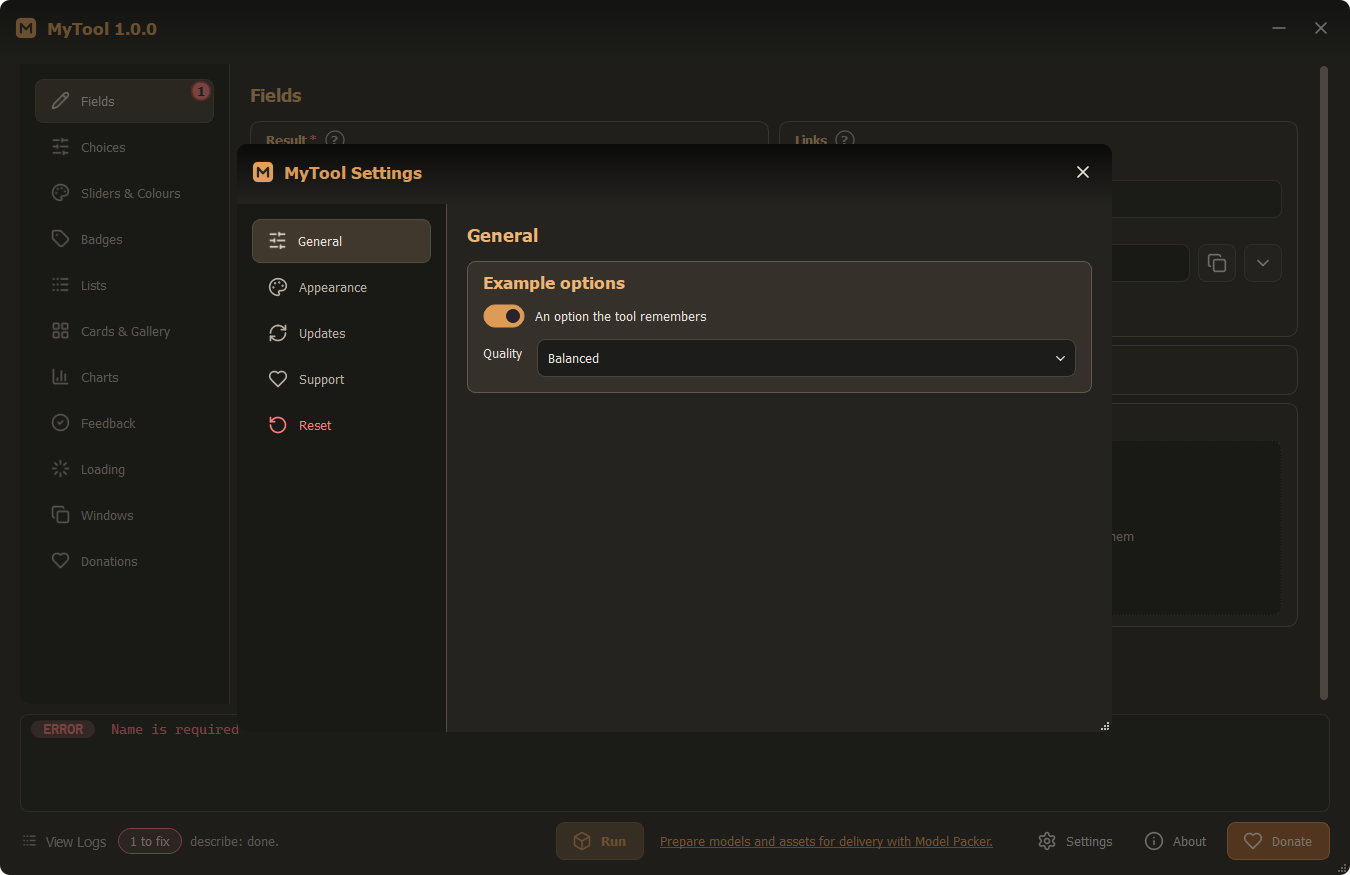
The veil lives and dies with its dialog: it goes when the dialog hides or is destroyed by any path. Nothing on it can be clicked (a window-modal dialog blocks every input to its owner window), so it never carries buttons.
The main window and every resizable dialog show a size grip in the bottom-right corner, hidden while the window is collapsed to the bar or maximised. About’s hero is a gradient from the window colour (where the header shade ends) to the recessed colour at the accent line, so the shade and the plate meet without a step.
- Every window has the main window’s chrome (
dialogs.ToolDialog): Settings, About, Logs, questions, small edit windows, an installer window.Qt.Dialog | Qt.FramelessWindowHint, parented to the main window; its own title bar (margins 12 / 8 / 8 / 6): the brand icon 18 px, the window’s title in the main window’s title style (toolWindowTitle, accent, bold) and the round close button (WindowButton, red on hover with a white cross). Dragging the title bar moves the window throughwindowHandle().startSystemMove()(Qt 5.15+, Windows snapping works), with a manual move as fallback. The same dark header shade as the main window (black at 0.7 alpha to transparent, ending 6 px below the title bar); Windows 11 rounds the corners (round_window_corners). Subclasses build intoself.content. No native Windows title bar and noQMessageBoxin a tool: questions aredialogs.ask. - Modality.
WindowModalfor Settings, About and questions. The Logs window is not modal (ToolDialog(..., modal=False, resizable=True)): the tool stays usable and Live shows what it writes while the user works. A resizable window keeps a way to resize: a 16 pxQSizeGripin the bottom-right corner. - Buttons stay in view. A dialog’s buttons (Close, OK / Cancel, Donate) sit at the bottom outside any scroll area. Every dialog unifies its control heights when shown.
- Veil. While a modal tool dialog is visible, a child widget covers the owner window with the
recessedcolour at alpha 150 and follows its resizes; removed on hide. Only tool-owned windows are veiled; a modeless dialog veils nothing. - Theme. Every dialog and every popup window (completer list, balloon, dropdown panel) registers with the theme manager: a separate window does not inherit the main window’s style sheet or font.
- One instance per dialog, kept in
controller.dialogs, raised when opened again, disposed onfinished. - Popups (help balloons, dropdown panels, completer lists) are frameless with a window mask for rounded corners and
Qt.NoDropShadowWindowHint; a popup does not inherit its window’s interface-size font, so set it from the parent.
What this replaces in the general design system
The Qt design system describes optional custom chrome in general terms. For tools made with this skill, the frameless window, title bar, collapsed bar and status bar above are the standard; use native chrome only if the user asks for it.